Features
PICS app includes serval features such as research and editing pics datas.
Importing pictures
At the first start of the app you will requested to select a folder source. This folder will contains all your pictures, respecting the structure explain in the requirements page of this guide.
When you start the importation of the folder, PICS will process all your pictures. When the import is complete, you will be automatically redirected to the main page of the application.
Pictures renaming
When PICS import our pictures, the pictures will be renamed with a basic schema :
Event_yyyy-MM-dd_HH-mm-ss.jpg
- Event => The name of the picture event (parent folder)
- yyyy-MM-dd => The shot date of the picture (retrieved in metadatas)
- HH-mm-ss => The shot hour with seconds of the picture (retrieved in metadatas)
- .jpg => The extension
Note : the pictures with no valid date found in the metadatas will be renamed to :
- Event_nodate1.jpg
- Event_nodate2.jpg
- ...
The main page
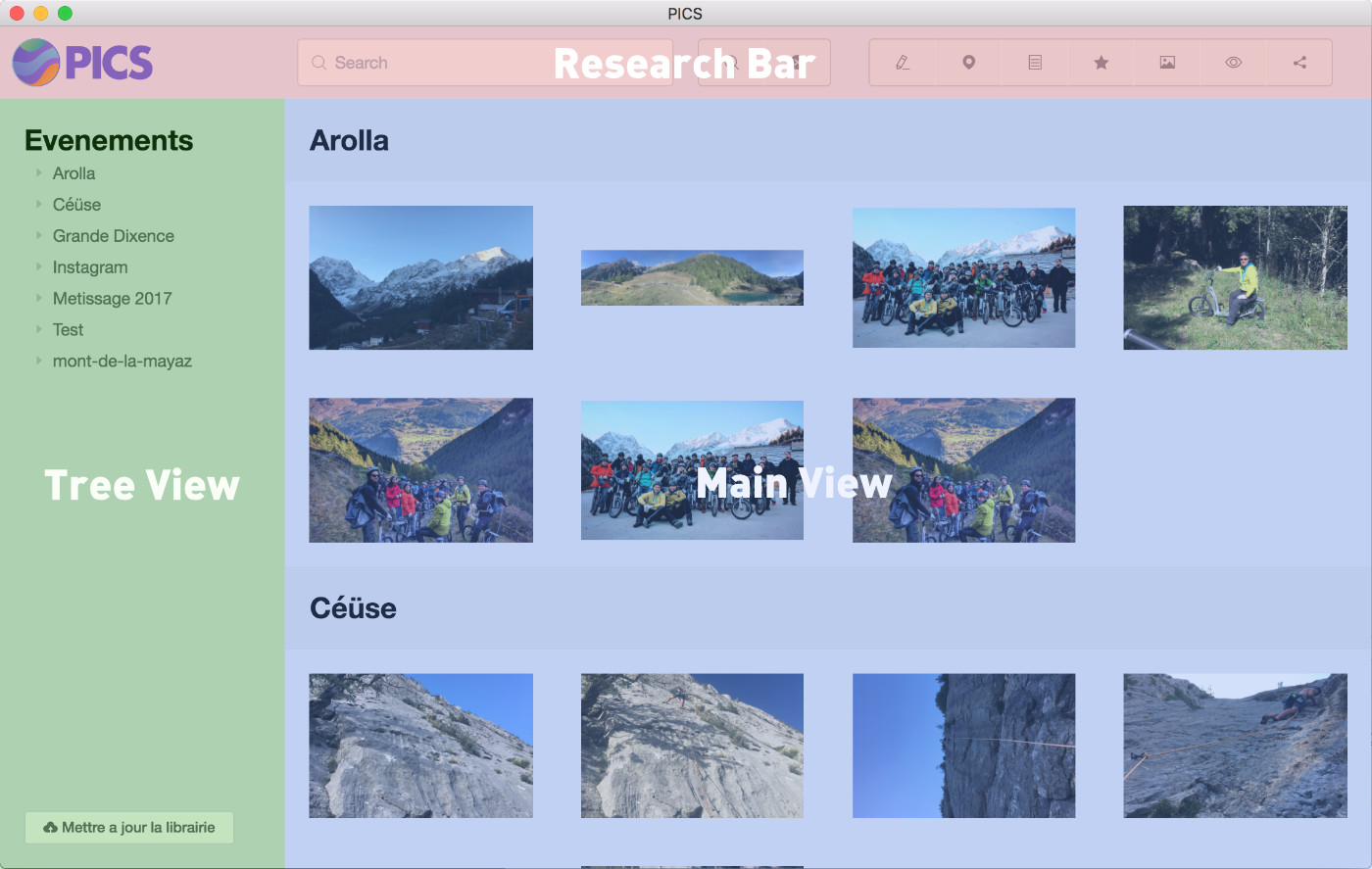
When we open the app, you will see the main page :
The main page displays all the pics and a tree view of your events. In the navigation bar you see a search field and diffrends filters.
Research bar

- research field it allows you to search words in all the library. By default he search in all the properties of pics.
- search button click to launch the research, you can also type enter key.
- cross button Display the base view.
- name filter the search will be limited to pics names.
- location filters the search will be limited to location of the pics.
- description filter the search will be limited to description of the pics.
- star filter the search will be limited to the pics you starred.
- panoramic filter the search will be limited to the panoramic pics.
- people filter the search will be limited to the peoples associated to a pics.
- tag filter the search will be limited to the tags associated to a pics
You can combine filters to refine your search results.
Example :
- If you type "Marc" with the star filter. "Marc" will be searched only in starred pictures.
- If you type "Marc" with the star and the people filters. "Marc" will be searched only in the person attribute of the starred pictures.
If the search query returns no results the main view will be empty.
The tree view
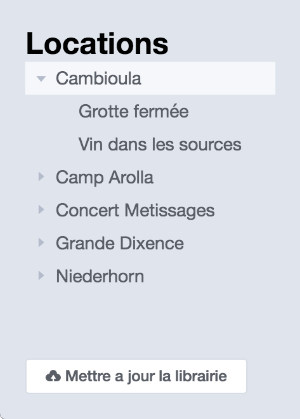
The tree view provide a simple way to view all events as a list.
- You can click on a parent (represent an event), and the main view will scroll to this event.
- You can click on a children (represent a picture), and the details view of this picture will be open.
- At the bottom of this section you can find an update button, this buttons trigger an update of the library (Pics will watch all the new pictures in the library folder, and add it in the app).
Note : The children display the name of the picture : by default the name is the same as the parent folder, but we can rename it in the details view.
The main view
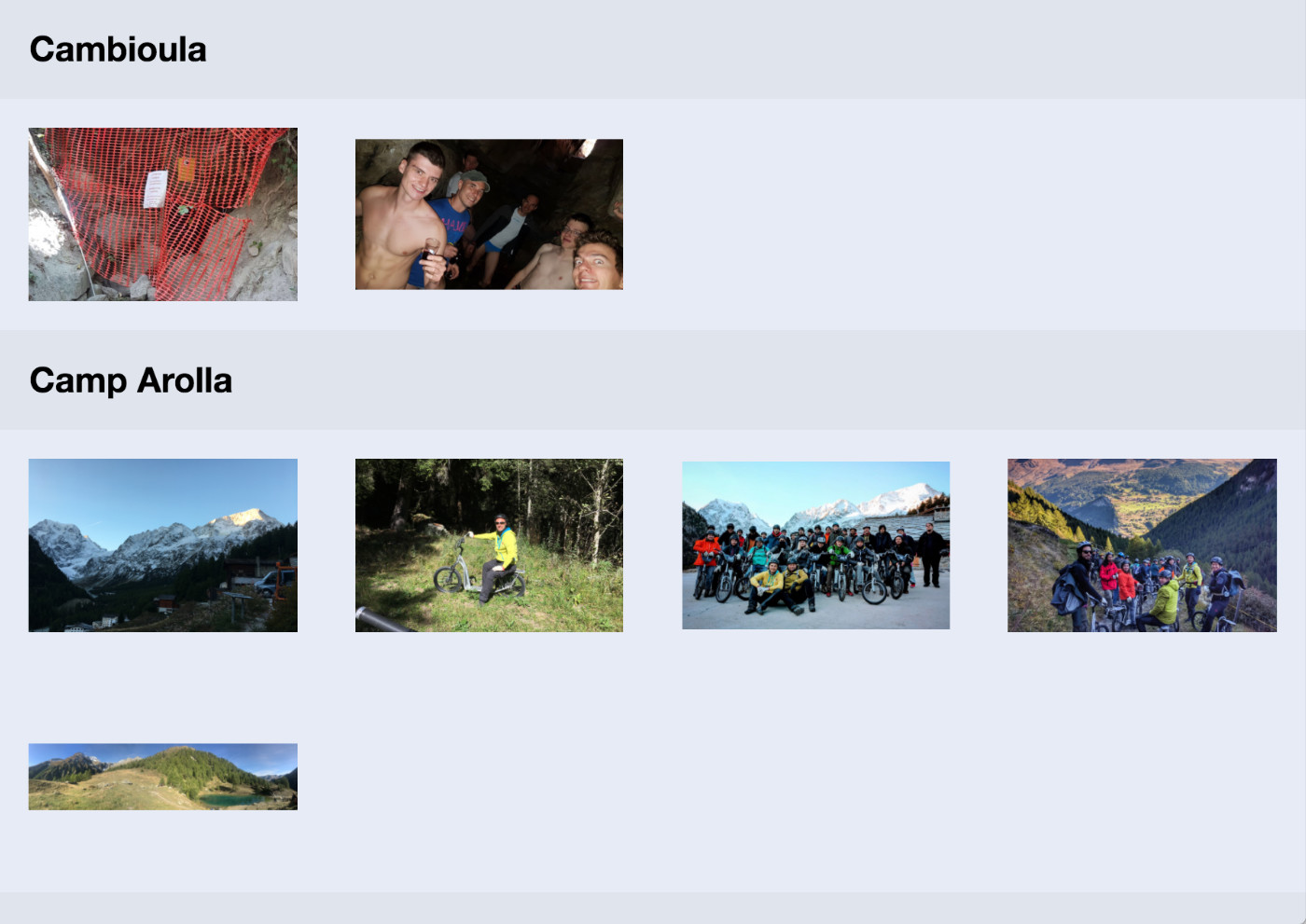
The main view displays all the pictures, separate by the event title.
When you hover the picture, his name will be displayed. You can click on the pictures to display the details view.
When you type a research, the results will be displayed on this view.
Details page
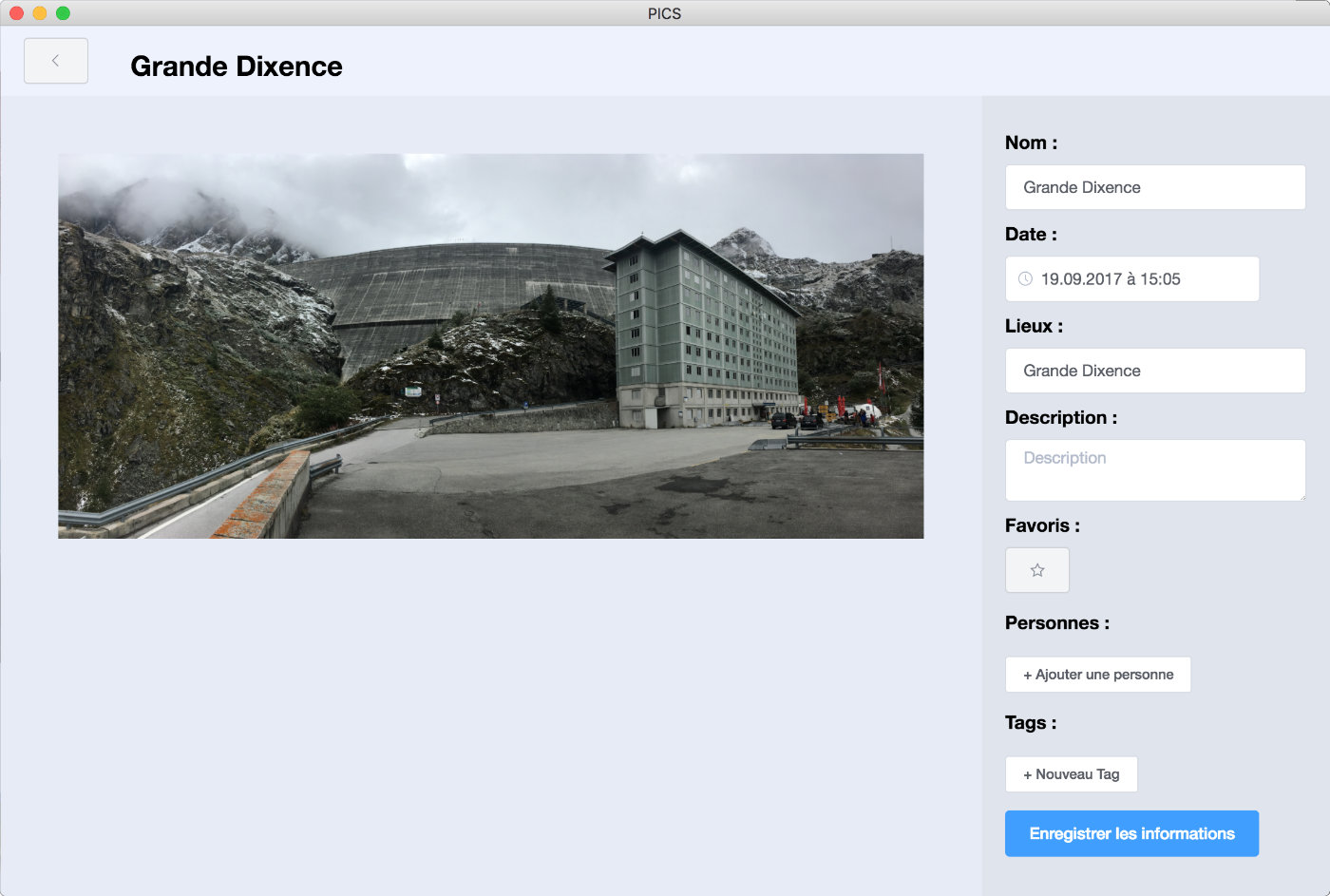
The details view provides a big preview of a picture and inputs to edit pictures datas.
Edition function :
- Name change the name of the picture.
- Date Change the shoot date of the picture.
- Place Change the place where thw picture have been taken.
- Description A little description of your picture.
- Star button Star and unstar a picture (favorites)
- Peoples Add peoples present on the picture
- Tags Add tags to our picture